
Duo Security consists of the log source template DuoSecurityFetcher which has pre-defined settings and configurations to fetch Duo Security logs. However, there are some fields in the template which must be configured manually.
To configure those fields:
Go to Settings >> Log Sources from the navigation bar and click Browse Log Source Templates.
Click DuoSecurityFetcher.
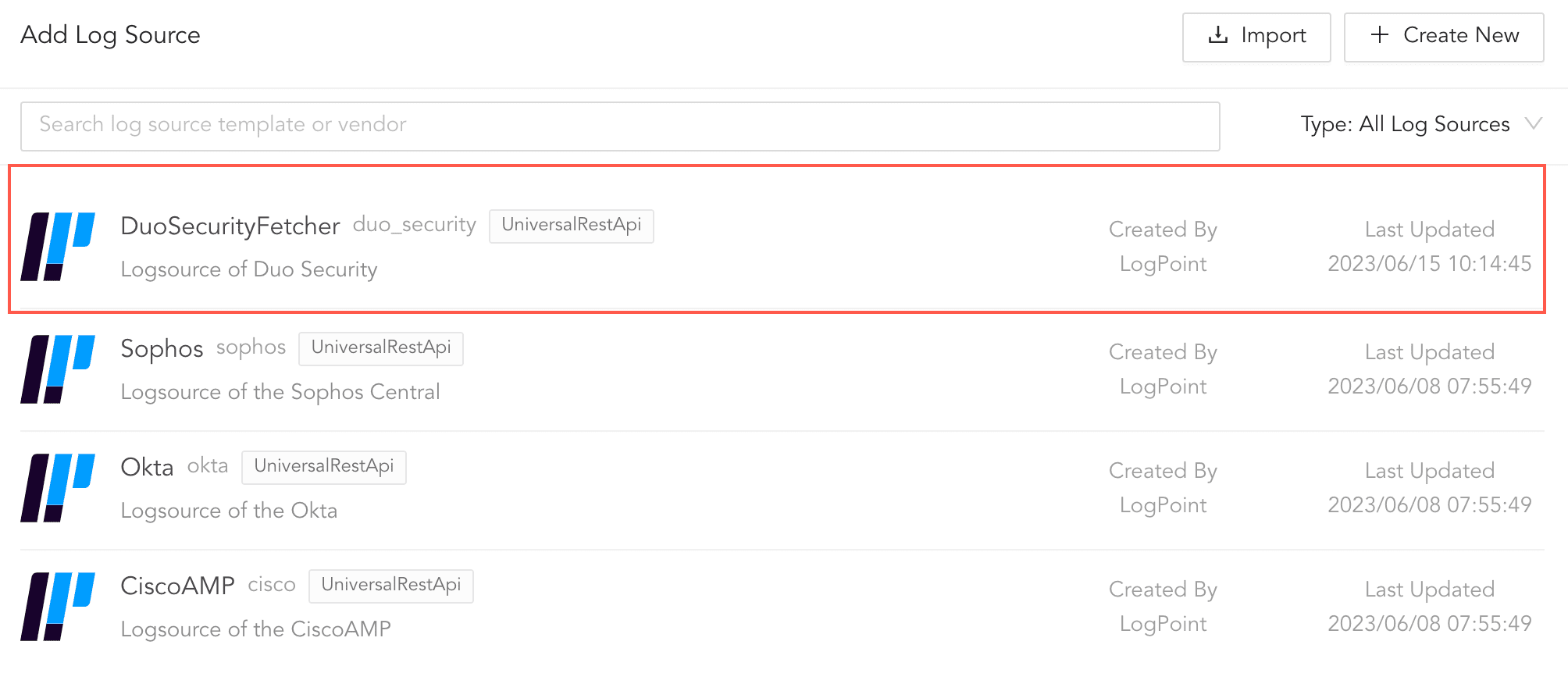
Log Source Templates
Enter the Duo Security Base URL.
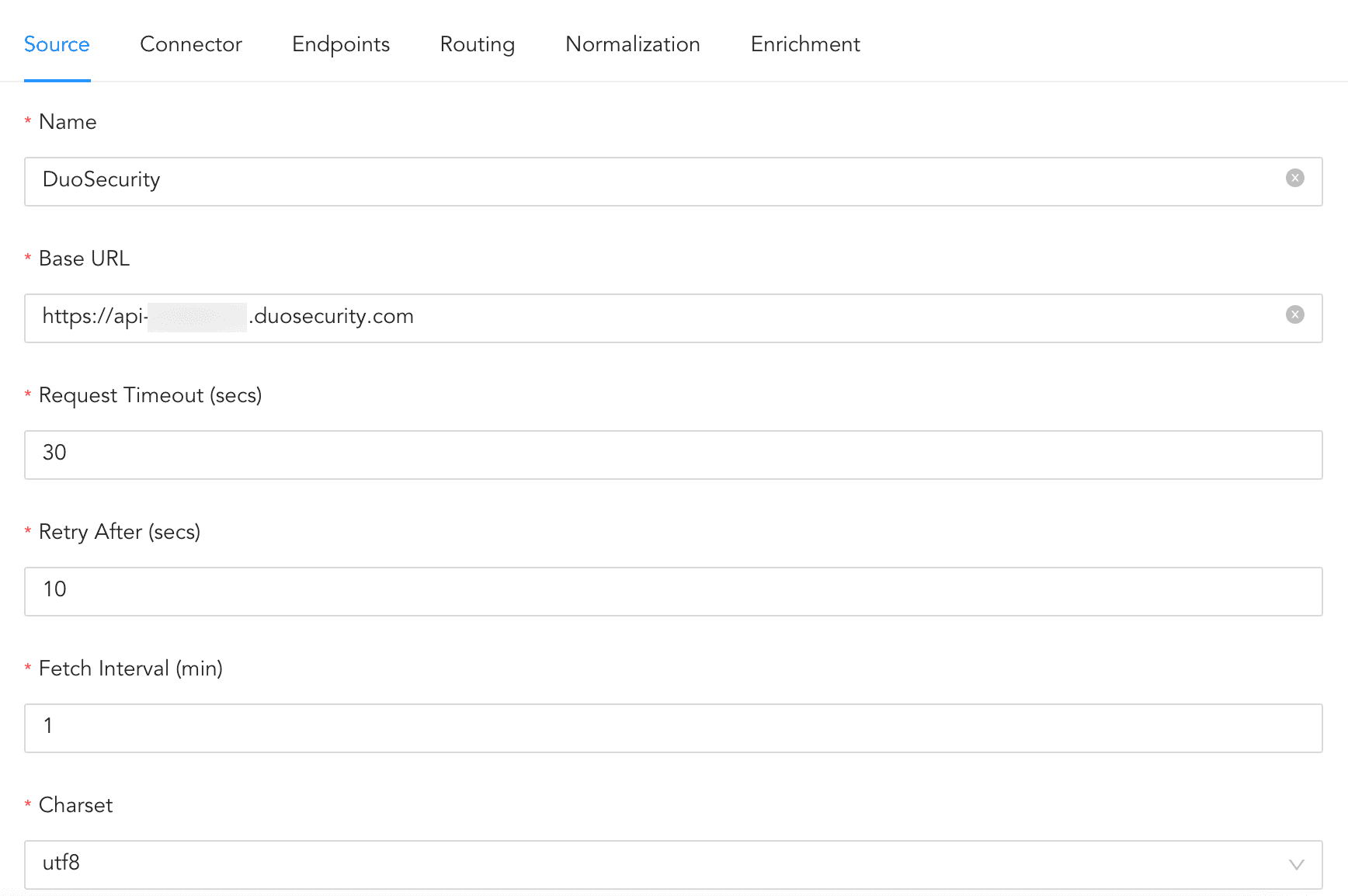
Configuring Source
Click Connector.
In Custom Params,
5.1. Enter the Duo Security integration key in ikey Value.
5.2. Enter the Duo Security secret key in skey Value.
5.3. Enter the Duo Security API hostname in host Value.
Note
Go to Appendix for information on obtaining the Integration Key, Secret Key and API Hostname.
Click Routing to create repos and routing criteria.
6.1. Click Routing and + Create Repo.
6.2. Enter a Repo name.
6.3. In Path, enter the location to store incoming logs.
6.4. In Retention (Days), enter the number of days logs are kept in a repository before they are automatically deleted.
6.5. In Availability, select the Remote logpoint and Retention (Days).
6.6. Click Create Repo.
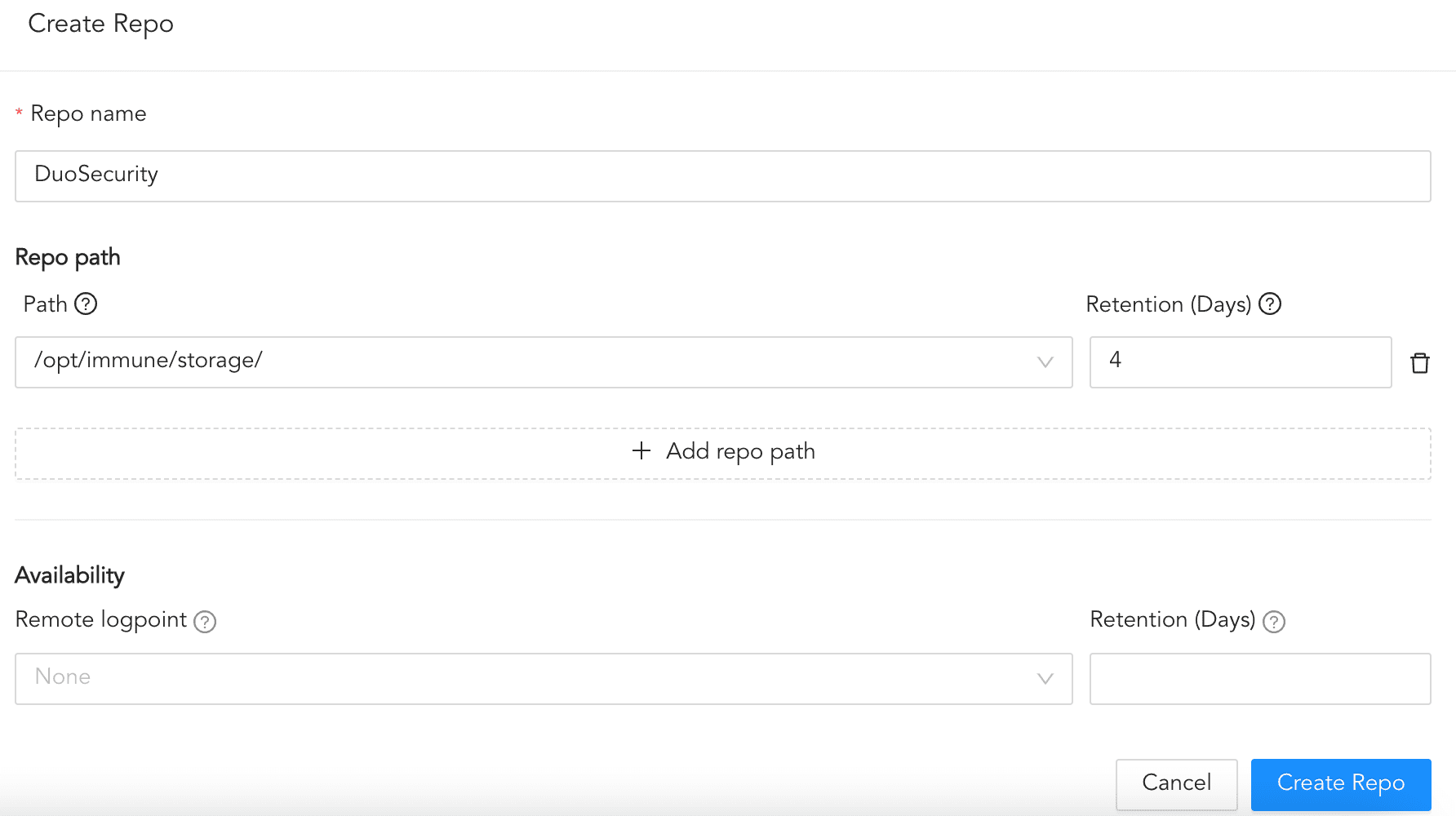
Creating a Repo
6.7. In Repo, select the created repo to store Duo Security logs.
6.8. Click + Add row.
6.9. Enter a Key and Value. The routing criteria is only applied to those logs which have this key value pair.
6.10. Select an Operation for logs that have this key value pair.
6.10.1. Select Store raw message to store both the incoming and the normalized logs in the selected repo.
6.10.2. Select Discard raw message to discard the incoming logs and store the normalized ones.
6.10.3. Select Discard entire event to discard both the incoming and the normalized logs.
6.11. In Repository, select a repo to store logs.
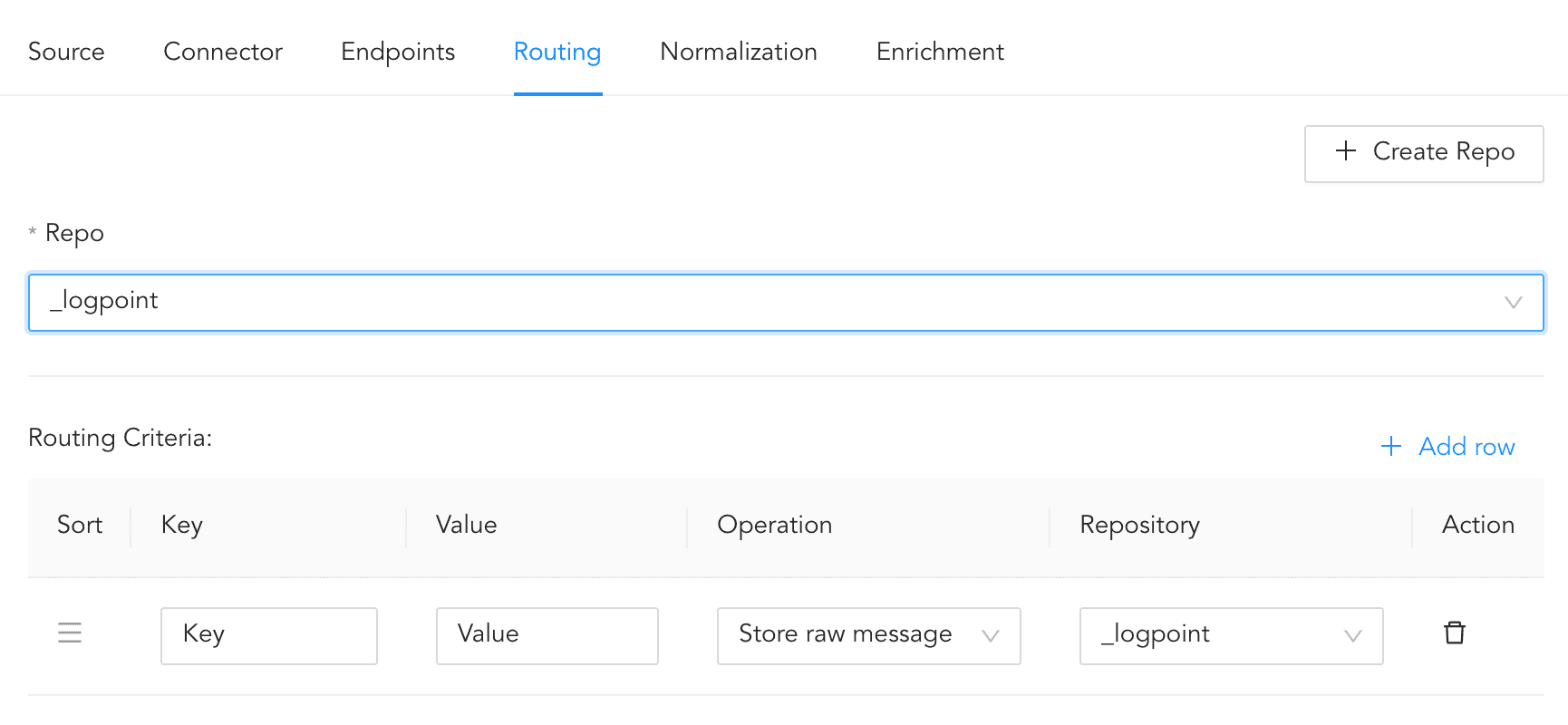
Creating a Routing Criteria
Note
Click the ( ) icon under Action to delete the created routing criteria.
Click Enrichment and select an enrichment policy for the incoming logs.
Click Save Configuration to save all the above configurations.
Go to Settings >> System Settings from the navigation bar and click Plugins.
Find Duo Security 5.1.0 and click Manage.
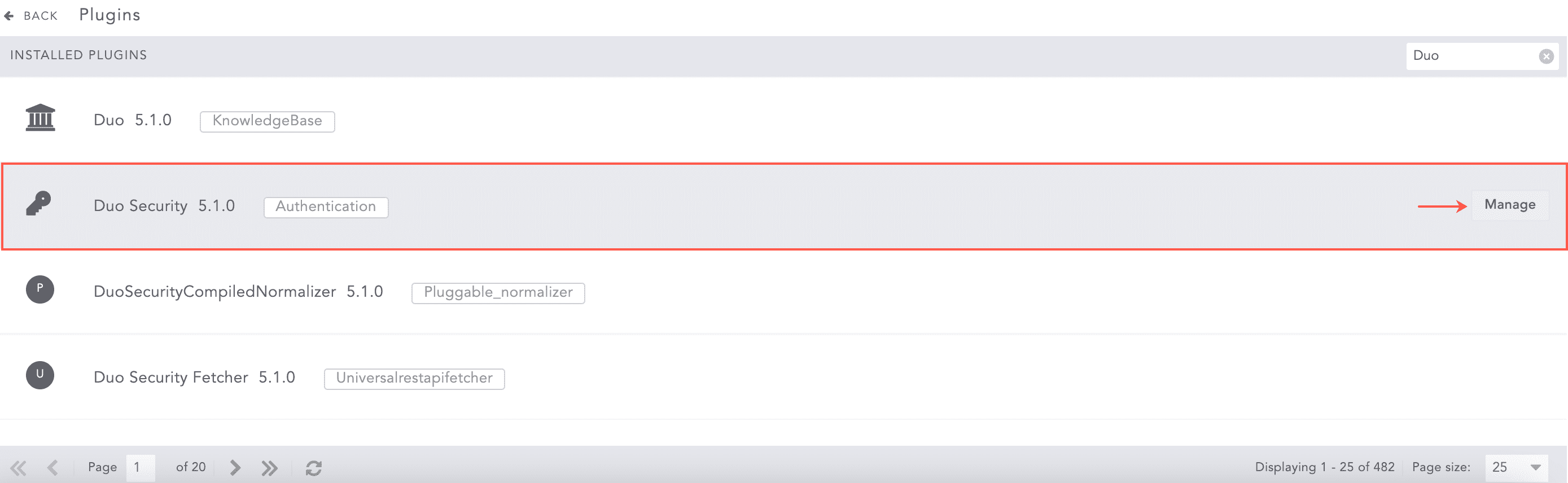
Configuring Duo Security
Enable Configure Duo Security Settings.
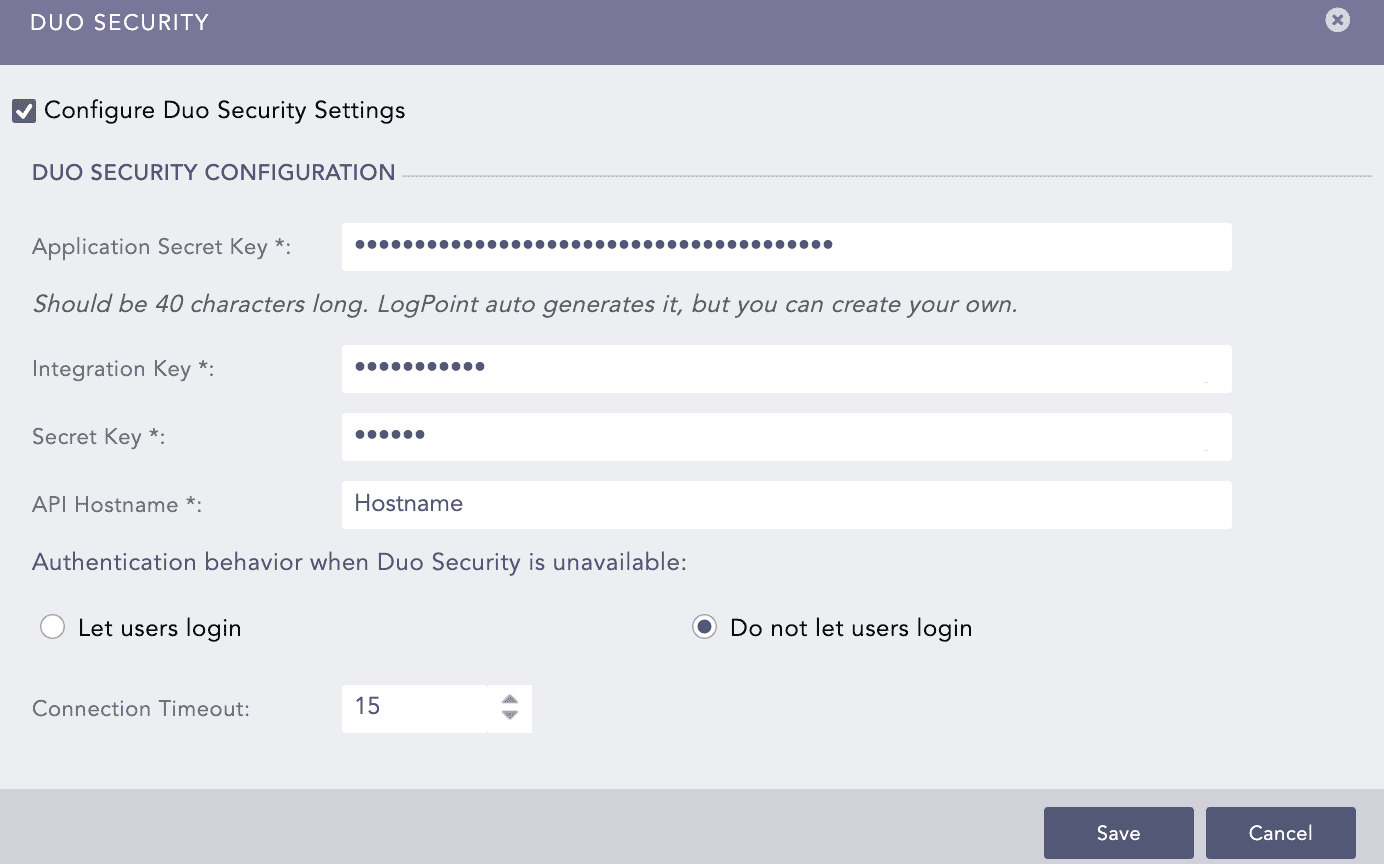
Configuring Duo Security
The Application Secret Key is auto-generated. You can also create your custom key, which must be 40 characters long with a combination of letters and numbers.
Enter the Integration Key, the Secret Key and the API Hostname.
Note
Go to Appendix for information on obtaining the Integration Key, Secret Key and API Hostname.
Select an Authentication behavior when Duo Security is unavailable.
4.1 Select Let users login to allow login even if the secondary authentication device is unavailable.
4.2 Select Do not let users login to restrict login if the secondary authentication device is unavailable.
Enter the Connection Timeout (in seconds) that is the maximum time limit to complete the authentication.
Click Save.